Mar, 01
Introduction
An Android TV Box is one of the best devices for streaming live TV, movies, and series through IPTV services. Whether you’re using an Nvidia Shield, Xiaomi Mi Box, Fire TV Stick, or any other Android-based TV box, this guide will show you how to install, configure, and optimize IPTV for the best streaming experience. In this article, we’ll cover:- The best IPTV apps for Android TV Boxes
- How to install and set up IPTV
- Troubleshooting common IPTV issues
- Tips for a better streaming experience
Let’s get started!
1. What is IPTV, and Why Use It on an Android TV Box?
IPTV (Internet Protocol Television) allows you to stream live TV channels, movies, and on-demand content over the internet instead of traditional cable or satellite services.Benefits of IPTV on an Android TV Box:
✅ Access to thousands of live TV channels & VOD ✅ High-definition (HD & 4K) streaming quality ✅ No satellite dish or cable required ✅ Works with various IPTV apps for customization ✅ Affordable compared to traditional cable TV If you have an Android TV Box, installing IPTV is a great way to unlock unlimited entertainment!2. Best IPTV Apps for Android TV Box
To watch IPTV on your Android TV Box, you need an IPTV player. Here are some of the most popular IPTV apps:Top IPTV Apps for Android TV Boxes:
- ✅ IPTV Smarters Pro – User-friendly interface, supports M3U & Xtream Codes API
- ✅ TiviMate IPTV Player – One of the best IPTV apps for Android TV, supports multiple playlists
- ✅ XCIPTV Player – Pre-built media player with EPG support
- ✅ Perfect Player IPTV – Lightweight, customizable, supports M3U URLs
3. How to Install IPTV on an Android TV Box
Setting up IPTV on an Android TV Box is easy. Follow these steps:Step 1: Install an IPTV App
- Turn on your Android TV Box and connect it to the internet.
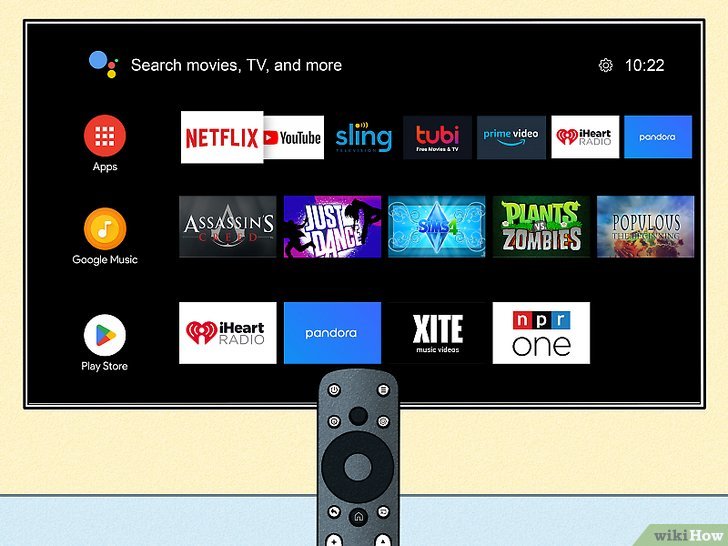
- Open the Google Play Store from the home screen.
- Type the name of the IPTV app (e.g., IPTV Smarters Pro) in the search bar.
- Click Install and wait for the download to complete.
- Open the app once installed.
Step 2: Configure Your IPTV Subscription
Once the IPTV app is installed, follow these steps to set it up:Method 1: Login with Xtream Codes API (Recommended)
Most IPTV providers offer Xtream Codes API, which is the easiest method.- Open the IPTV app on your Android TV Box.
- Select Login with Xtream Codes API.
- Enter the IPTV subscription details provided by your provider:
- Server URL (Portal URL)
- Username
- Password
- Click Login and wait for channels to load.
Method 2: Load M3U Playlist (Alternative Method)
If your provider gives you an M3U playlist URL, follow these steps:- Open the IPTV app and select Load Playlist or File/URL.
- Choose M3U URL as the playlist type.
- Copy and paste the M3U link provided by your IPTV provider.
- Click Add User or Load Playlist to start loading channels.
4. Optimizing IPTV on Your Android TV Box
To enhance your IPTV experience, follow these optimization tips:Enable EPG (TV Guide)
If your IPTV provider offers an EPG (Electronic Program Guide) URL, enter it in the app settings to access a TV schedule.Adjust Video Player Settings
Some IPTV apps allow you to change the default player for better streaming performance. Try VLC or MX Player for improved compatibility.Use a VPN for IPTV
If IPTV is blocked in your country, install a VPN like ExpressVPN or NordVPN on your Android TV Box to bypass restrictions and prevent ISP throttling.Improve Internet Connection
- Use a wired Ethernet connection for a more stable IPTV experience.
- If using Wi-Fi, position your Android TV Box closer to the router.
- Ensure your internet speed is at least 10 Mbps for HD streaming and 25 Mbps for 4K streaming.
5. Troubleshooting Common IPTV Issues on Android TV Box
Here are solutions to common IPTV problems:Issue 1: IPTV Channels Not Loading
✔️ Check your internet connection ✔️ Restart the Android TV Box and IPTV app ✔️ Verify your IPTV subscription details ✔️ Try a different IPTV playerIssue 2: Buffering or Lagging Streams
✔️ Use a wired Ethernet connection instead of Wi-Fi ✔️ Lower the stream quality in the app settings ✔️ Use a VPN to avoid ISP throttlingIssue 3: IPTV App Crashes or Freezes
✔️ Clear the app cache in Android TV Box settings ✔️ Uninstall and reinstall the IPTV app ✔️ Use another IPTV player like TiviMate or XCIPTV6. Best IPTV Subscription for Android TV Box
To enjoy high-quality IPTV on your Android TV Box, choose a reliable IPTV provider. Look for services that offer: ✅ HD & 4K Channels ✅ Stable Servers with No Buffering ✅ Multiple Device Compatibility ✅ 24/7 Customer Support 👉 Buy Now! and start streaming today! 🚀Conclusion
Setting up IPTV on an Android TV Box is simple and takes only a few minutes. By following this guide, you can enjoy unlimited entertainment with live TV, movies, and series on your Android TV Box. Whether you’re using IPTV Smarters Pro, TiviMate, or XCIPTV, make sure to optimize your streaming experience by using a VPN, stable internet connection, and EPG support. 📺 Get an IPTV subscription today and start streaming on your Android TV Box!
Categories: TutorialTags: 4K IPTV streaming Android TV Android TV Box IPTV configuration Android TV Box IPTV streaming tips best IPTV apps for Android best IPTV subscription for Android TV Fire TV Stick IPTV guide HD IPTV Android TV how to install IPTV on Android TV how to watch live TV on Android TV improve IPTV streaming experience install IPTV on Nvidia Shield IPTV apps with M3U support IPTV buffering fix IPTV EPG guide Android TV Box IPTV player apps for Android TV Box IPTV setup Android TV Box IPTV Smarters Pro setup IPTV streaming on Android TV M3U playlist IPTV Android TV optimize IPTV Android TV Box TiviMate IPTV player installation troubleshooting IPTV issues Android TV use VPN for IPTV Android TV Xiaomi Mi Box IPTV setup Xtream Codes API IPTV setup